Very often, laptop users encounter the problem of a non-working microphone when connecting a headset to the laptop's sound card via the combined 3.5mm jack.
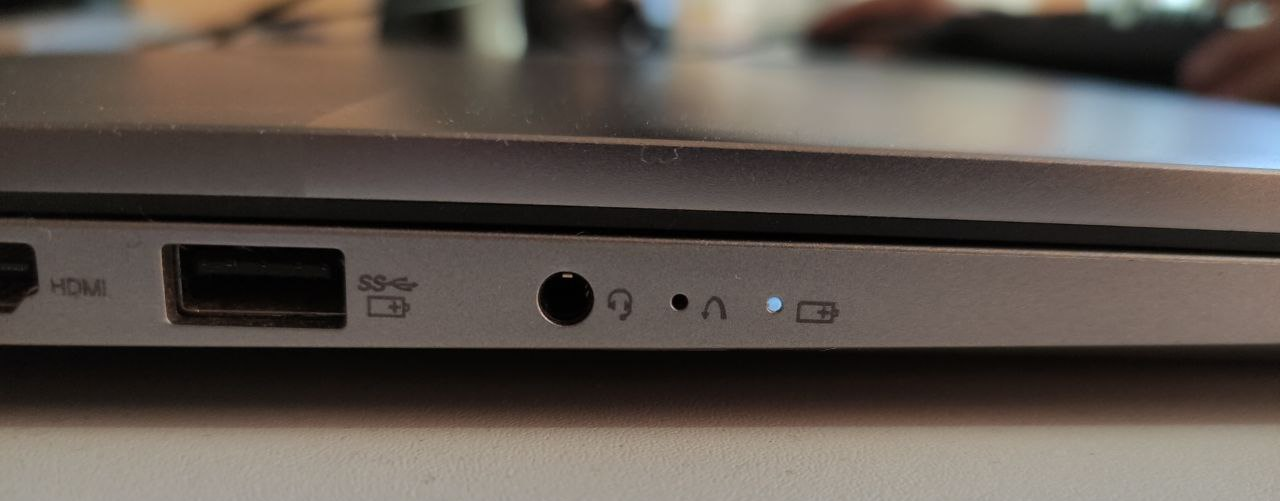
The main reasons for such situations can be divided into two types:
a) incorrect connection
b) problem with the sound card driver (in 99% of cases - Realtek)
It is very easy to avoid or fix the problem of incorrect connection - look at the user manual and make sure that everything is connected correctly. All connections must be in the correct position and tightly fixed. The microphone in the socket on the earcup and the microphone mute button must be in the appropriate position. If you have checked everything, and the headset still does not work properly - check it on another sound source, this is a simple but most effective way to check the health of the headset itself.
If the microphone works on another sound source (phone, another PC or gamepad) - most likely, there is a problem with the sound card driver.
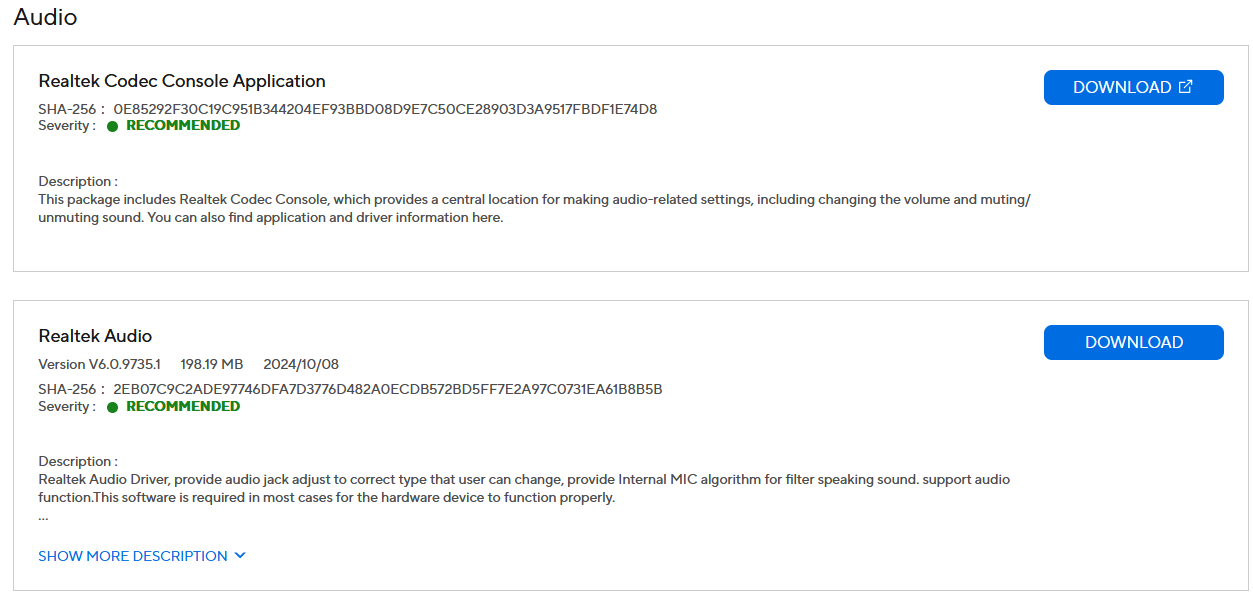
Visit the driver download page for your laptop model to download and install the manufacturer's recommended sound card driver. You also need to install the Realtek Audio Console (downloadable from the laptop manufacturer's website or from the Microsoft Store). After installing the necessary software, connect the headset and check how it is displayed in the Realtek Audio Console. In most cases, the headset is recognized as "Headphones", in this mode the microphone will not work. If this happened in your case, in the advanced settings of the device, change the device type to "Headset" and check the microphone again.
