To change the keyboard firmware type to SonixQMK, you need to perform a few simple steps. This article will provide all the information you need to guide you through the process and prevent most questions from arising.
It is worth remembering that the proprietary software for configuring the keyboard will not work with this firmware. Before starting, we recommend that you once again consider whether it would be appropriate to change the firmware in your particular case.
The first step - download the necessary files.
You need to download two files - the firmware itself and the program that will install it in the keyboard.
Download firmware files:
Keyboard firmware flasher download:
Download the files (fimware and flasher) according to the type of your operating system and the keyboard model. Extract the files to a convenient location on the disk. After downloading the necessary files, you should prepare the keyboard.
Step two - activate the service mode of the keyboard.
There are special contacts on the keyboard board that allow you to activate the service mode. The contacts are located on the board under the Space key:
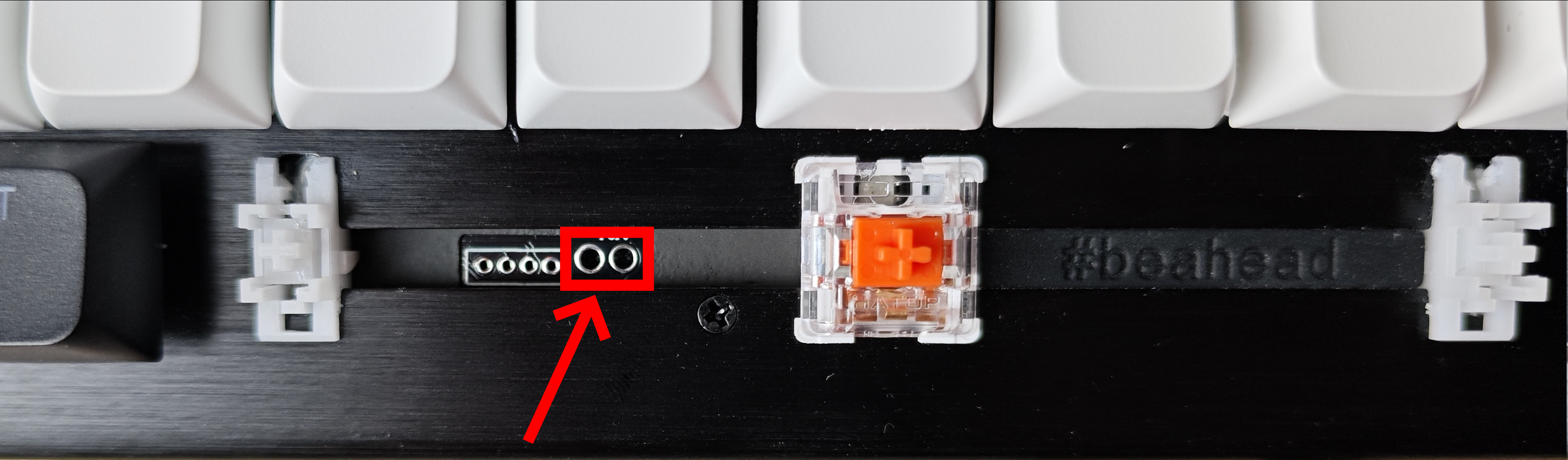
Disconnect the USB cable from the keyboard. To get to the contacts, you need to carefully remove the keycap of the Space key and the rubber plug to the left of the switch. To activate the service mode, the marked contacts must be shorted (connected to each other) with a jumper. Any metal object can be used as a jumper (paper clip, wire and even manicure scissors).
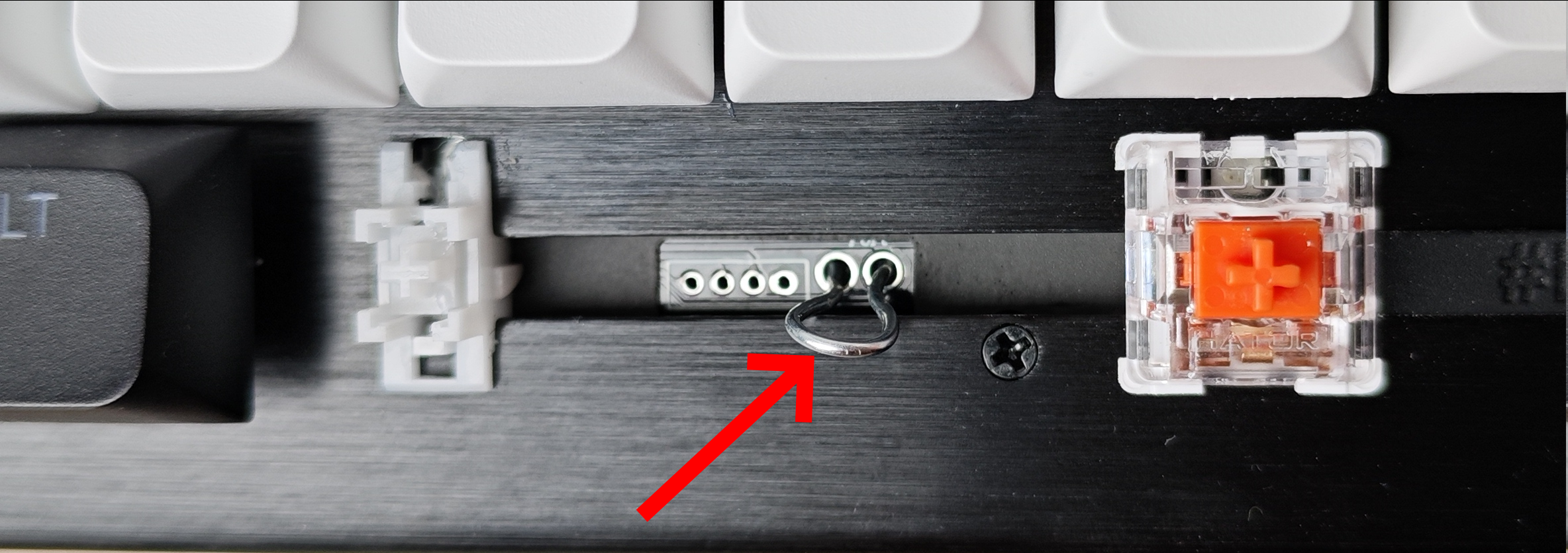
After connecting the contacts (shorting), it is necessary to connect the USB cable to the keyboard. In service mode, the keyboard will not register presses, the backlight will not work. Remove the jumper after connecting the usb cable and successfully entering the service mode. The keyboard is ready for firmware.
The third step is flashing the firmware.
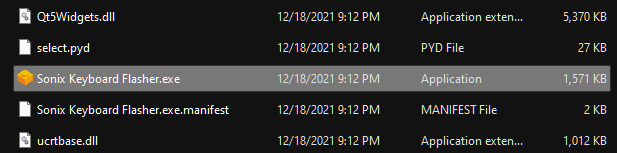
Run the SonixFlasher keyboard flashing program. Find the "Sonix Keyboard Flasher.exe" (in case of using Windows OS) file in the program files folder and open it.
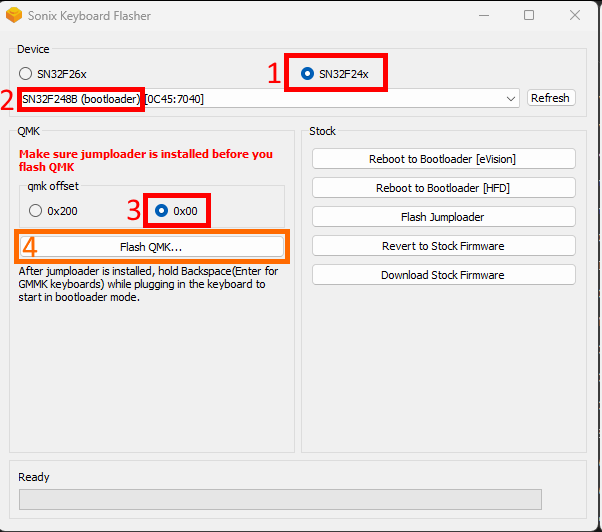
IMPORTANTLY!
⚠️ 1 - be sure to check whether the "SN32F24x" controller model is correctly selected;
⚠️ 2 - make sure that the keyboard has entered service mode and is displayed in the program exactly like this - "SN32F248B (bootloader)", the keyboard does not register presses and there is no backlight;
⚠️ 3 - the value of "qmk offset" should be "0x00";
If other values are displayed, stop the process. Firmware with other parameters may cause the keyboard to malfunction!
If all the values match those shown in the image of the program above, you can start the firmware process.
Click the "Flash QMK" button and select the firmware file for your keyboard. Make sure you download and select a compatible version of the file. Flashing incompatible firmware into the keyboard will disable it! Select the firmware file and click "Open" - the firmware process will start immediately.
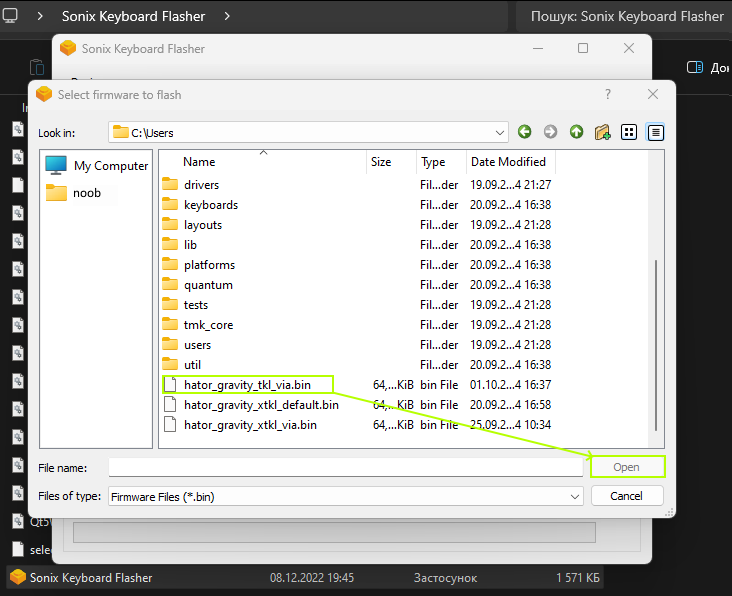
DO NOT UNPLUG THE KEYBOARD DURING THIS PROCESS
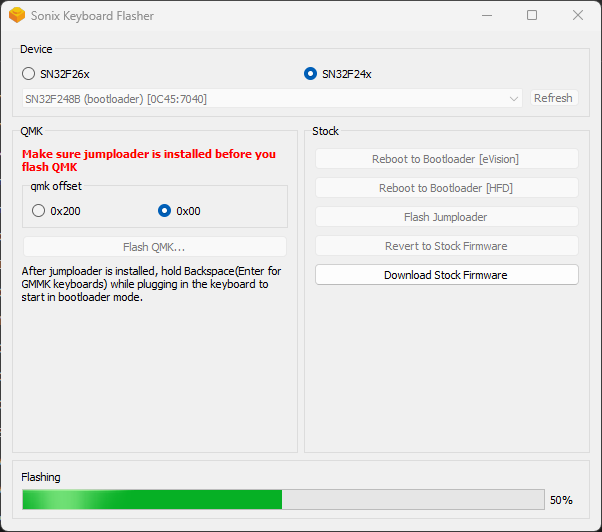
Do not close the program or turn off the computer during the firmware process - this will damage the keyboard!

Wait for 100% completion of the firmware process. After successful flashing, the keyboard will reboot into normal mode and be fully functional. Install the rubber plug and keycap of the Space key.
Ok, what's next?
To configure the keyboard with SonixQMK, we recommend using the VIA interface. What is VIA and how to use it, the following article will tell:
📜VIA interface usage information

SignalRGB is a program for synchronizing the backlight of all devices connected to one computer. To add support for GRAVITY keyboards with SonixQMK firmware, you need to download and copy the definition files to the folder at the following path:
"your username"\Documents\WhirlwindFX\Plugins
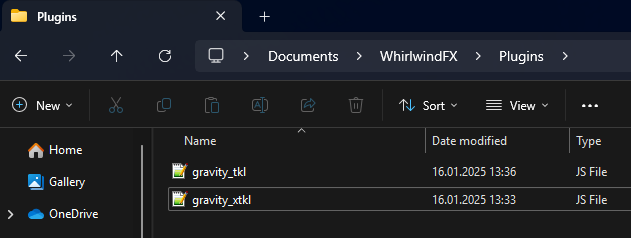
Downloads for SignalRGB:
To save the file to your computer, right-click on the link and select "save link as"
SignalRGB website - https://signalrgb.com/
"PLAN B" or "How to return the firmware that was installed in the keyboard by default".
It is very easy to return to the original firmware, you need to put the keyboard in service mode and flash it again. Flashing the keyboard with the original firmware is performed by a special program that can be downloaded from the following links:
⬇️download for GRAVITY TKL (HTK560)
⬇️download for GRAVITY TKL (HTK561)
This time, you don't have to short the contacts on the board again, the SonixQMK firmware has the appropriate key combination - Fn+~(if you have not changed it through the VIA interface). After activating the service mode, open the downloaded firmware program and press the "Start" button:
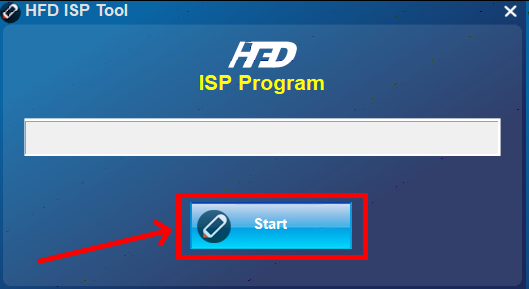
Do not close the program or turn off the computer during the firmware process - this will damage the keyboard!

Wait for the "Update successfully" message - firmware process complete and you can close the program now. After this, reconnect the keyboard to the computer and reset the settings by pressing the "Fn+Esc" key combination for 2 seconds. The keyboard will reboot and be fully operational.
