The firmware update allows you to add more layers of keys (6) for customization and activate the ability to check the charge in wireless mode, via the Fn1+LAlt key combination.

More key layers allow for even more combinations and the ability to use the additional Fn2 function key in the right way. Customize more layers for specific operating systems or just let your imagination run wild and create combinations for every occasion.
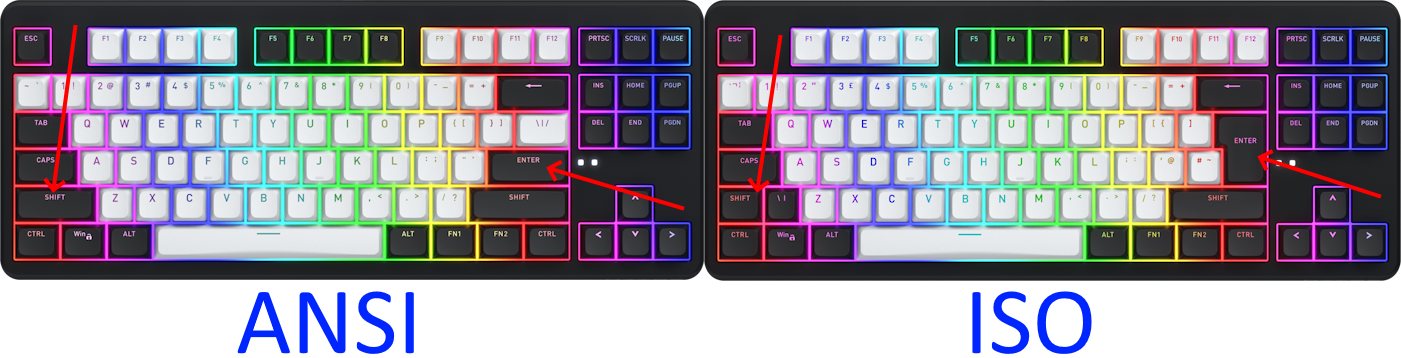
You will need a USB cable, a special program and a file with the new firmware. Download both files to a convenient place on your computer:
Open the firmware flashing tool as administrator:
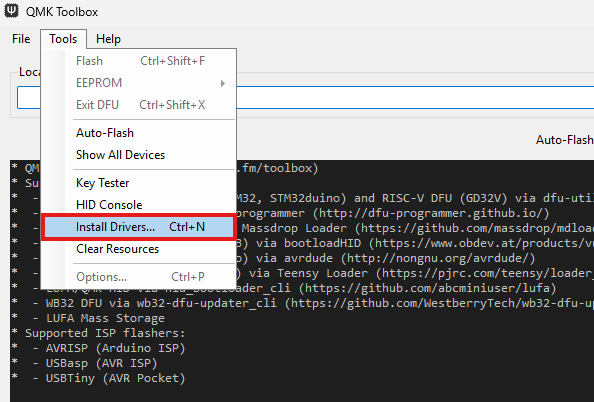
If the program did not offer to install the drivers, install them manually, as shown in the following image:
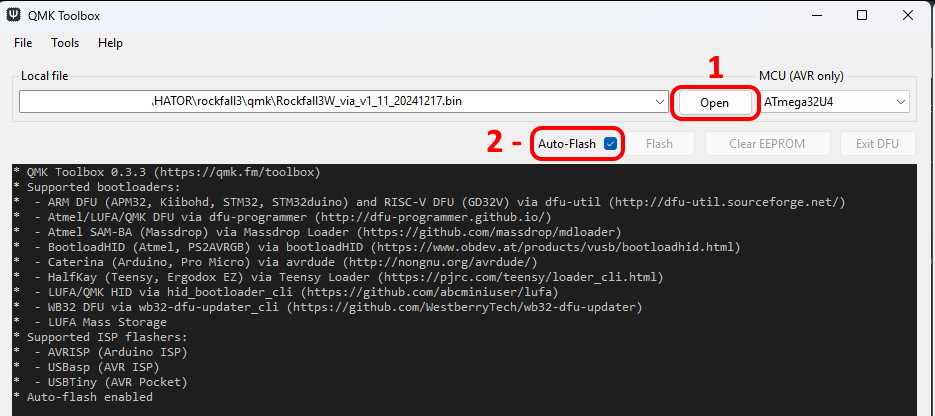
1) click the "Open" button and specify the path to the downloaded firmware file;
2) check the box next to "Auto-Flash"
🔹Firmware update
Make sure that the keyboard is in wired mode (middle position of the mode switch) and disconnected from the computer. The keyboard firmware update occurs in service mode. Activating the keyboard service mode: holding down the "ESC" key, connect the cable to the keyboard (without releasing the ESC-key). In service mode, the keyboard will not work, the backlight will be off - you no longer need to hold the "ESC" key. If everything is done correctly, the program will identify the device and start the firmware automatically:
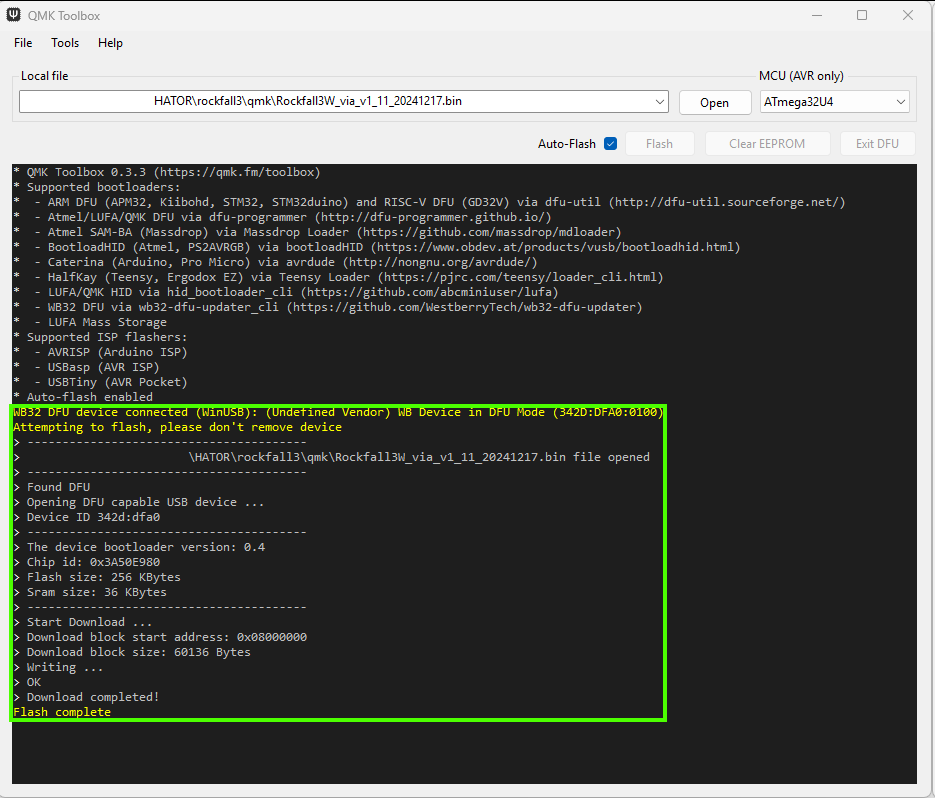
IMPORTANT! Do not close the program, disconnect the keyboard or turn off the computer during the flashing process - this will damage the keyboard!
After the update procedure is complete, the program will display the message "Flash complete". Only after you see this message, disconnect the USB cable - the keyboard is ready to work.
